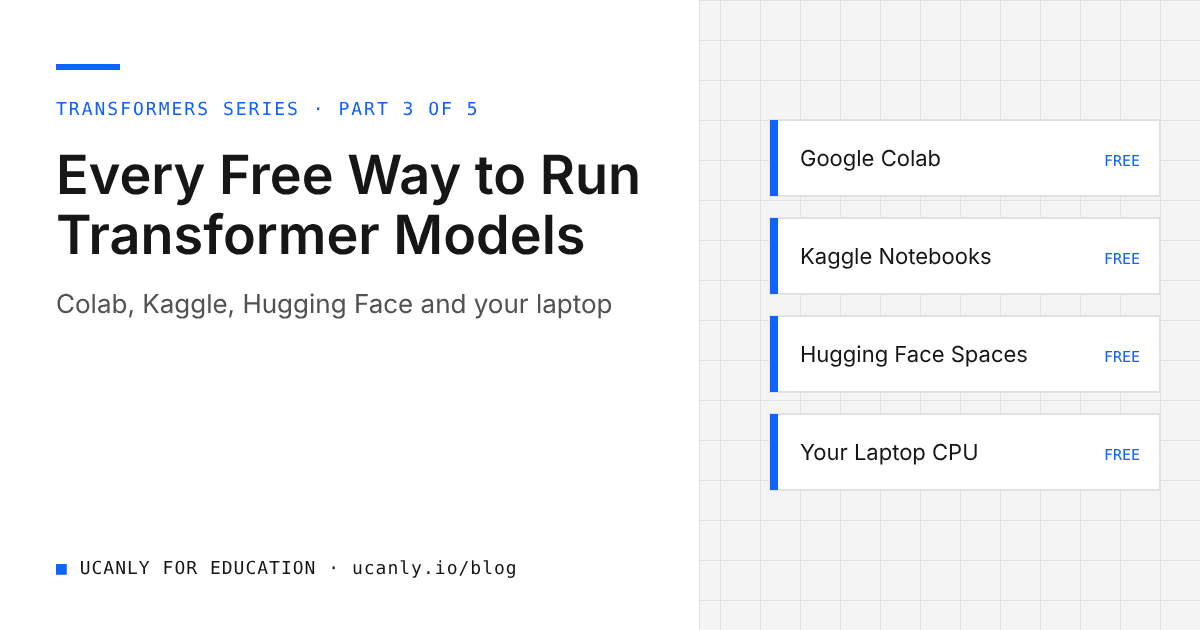
If you are a student in India learning AI, you have probably hit the same wall many others hit: transformer models look exciting in tutorials, but your laptop has no dedicated GPU and paid cloud credits are not an option. The good news is that you can learn, experiment, fine tune and even deploy small transformer models without spending anything. The catch is knowing which free option fits which job, and how to stay inside the limits each platform sets.
This guide compares every practical free route: Google Colab, Kaggle notebooks, the Hugging Face Hub and its free inference options, Hugging Face Spaces, and running models on your own laptop CPU, including local runner apps for small open models. For each one you get what it is best for, its limitations, and how to start.
Free limits change often. This article describes them qualitatively on purpose. Always check the current limits on the provider's own page before you plan a long training run.
Google Colab free tier
Colab gives you a hosted Jupyter notebook in the browser, with an option to attach a GPU when one is available. For most students it is the first place they run a transformer model.
Best for
- Quick experiments with the
transformerspipeline API - Fine tuning small models such as
distilbert-base-uncasedon a college project dataset - Following course notebooks that are already shared as Colab links
Limitations
- GPU access is not guaranteed. During busy periods you may get a CPU only runtime.
- Sessions disconnect after inactivity and have a maximum lifetime, so long jobs can be cut off.
- Everything on the runtime disk is wiped when the session ends.
How to start
- Open Colab with your Google account and create a new notebook.
- Go to Runtime, then Change runtime type, and select a GPU if offered.
- Install libraries and run a first pipeline:
!pip install -q transformers datasets accelerate

from transformers import pipeline

classifier = pipeline(
    "text-classification",
    model="distilbert-base-uncased-finetuned-sst-2-english",
    device=0,  # use the first GPU; use -1 for CPU
)
print(classifier("The placement training sessions were genuinely useful."))
Kaggle notebooks
Kaggle offers free notebooks with optional GPU accelerators, tightly linked to its huge collection of public datasets and competitions.
Best for
- Projects that need a public dataset, since you can attach Kaggle datasets in one click
- Longer, more predictable sessions than Colab in many cases, within a weekly accelerator allowance
- Building a public portfolio: published notebooks show recruiters your process, not just your result
Limitations
- GPU time is rationed per week, and you must verify your account (typically with a phone number) before accelerators and internet access unlock.
- Internet access inside the notebook is a setting you have to switch on.
- Output storage per notebook is limited, so large checkpoints need care.
How to start
- Sign up on Kaggle and complete account verification.
- Create a new notebook, then open the settings panel to choose an accelerator and enable internet.
- Use the same
transformerscode as on Colab. Save outputs to/kaggle/working, which is kept when you save a version of the notebook.
Hugging Face Hub: model cards, licences and free inference
The Hub is where most open transformer models live. You do not run heavy compute here for free, but you should treat it as your library and reference desk.
Reading model cards properly
Every serious model has a model card. Before you use a model in a project, check:
- Intended use and limitations: what tasks it was trained for and where it fails
- Training data: important if your project involves Indian languages or local context
- Size: smaller models load faster and fit free hardware more easily
- Licence: shown at the top of the card
Why licences matter
Licences such as Apache 2.0 and MIT are generally permissive. Some models use custom licences that restrict commercial use or require you to accept terms before downloading. If you plan commercial use, read the licence first. Mentioning that you checked licences in an interview shows maturity.
Free inference options
Hugging Face provides ways to try models without downloading them: the interactive widget on many model pages, and a free tier of hosted inference you can call with your access token through the huggingface_hub library. Availability depends on the model and on current provider support, and free usage is rate limited.
Best for: quickly testing whether a model suits your task before investing setup time.
Limitations: rate limits, not every model is served, and you should never build a production app that depends on a free endpoint.
How to start: create a free Hugging Face account, generate a read token in your settings, and keep it in an environment variable or notebook secret, never inside shared code.
Hugging Face Spaces
Spaces lets you host a small demo app, usually built with Gradio or Streamlit, on free CPU hardware. This is the easiest way to give a recruiter a clickable link to your project.
Best for
- Portfolio demos for placements and internship applications
- Sharing a final year project with your guide or classmates
- Small models that run acceptably on CPU
Limitations
- Free hardware is CPU based and modest, so large models will be slow or fail to load.
- Free Spaces go to sleep after a period of inactivity and take time to wake up.
- Storage on the Space is not meant for saving user data permanently.
How to start
- Create a new Space, choose Gradio as the SDK and the free CPU hardware.
- Add an
app.pyfile:
import gradio as gr
from transformers import pipeline

summarizer = pipeline("summarization", model="google/flan-t5-small")

def summarise(text):
    result = summarizer(text, max_new_tokens=80)
    return result[0]["summary_text"]

demo = gr.Interface(
    fn=summarise,
    inputs=gr.Textbox(lines=8, label="Paste your notes"),
    outputs=gr.Textbox(label="Summary"),
    title="Lecture Notes Summariser",
)

demo.launch()
- Add a
requirements.txtfile containingtransformersandtorchon separate lines. The Space builds and goes live automatically.
Put the Space link on your resume and GitHub README. If you want feedback on how you present such projects, try our AI resume review.
Running small models on your laptop CPU
You do not always need the cloud. Many useful transformer models are small enough to run on an ordinary laptop.
Best for
- Embeddings and semantic search with
sentence-transformers/all-MiniLM-L6-v2 - Classification, translation with
Helsinki-NLP/opus-mt-en-hi, and short summaries - Working offline, for example on a hostel network that keeps dropping
Limitations
- Training anything beyond a tiny model is slow on CPU.
- Large generative models will not fit comfortably in typical laptop memory.
How to start
from sentence_transformers import SentenceTransformer, util

model = SentenceTransformer("sentence-transformers/all-MiniLM-L6-v2")

questions = [
    "How do I prepare for campus placements?",
    "What projects help in getting an internship?",
]
query = "Tips for placement preparation"

q_emb = model.encode(query, convert_to_tensor=True)
doc_emb = model.encode(questions, convert_to_tensor=True)
print(util.cos_sim(q_emb, doc_emb))
Local runner apps for small open models
If you want a chat style model on your own machine, local runner tools such as Ollama and similar desktop apps let you download a small open model and chat with it from the terminal or a simple interface. They usually ship compressed (quantised) versions of models so they fit in laptop memory. The general workflow is: install the runner, pull a small model from its library, run it, and optionally call it from Python through the local API the runner exposes.
Best for: understanding how generative models behave, building offline prototypes, and privacy sensitive experiments.
Limitations: responses are slower than ChatGPT, Claude or Gemini, and small models make more mistakes, so verify outputs. Check each model's licence in the runner's library just as you would on the Hub.
Quick comparison
| Option | Best for | Main limitation |
|---|---|---|
| Colab free tier | Fast experiments, course notebooks | GPU not guaranteed, sessions reset |
| Kaggle notebooks | Dataset driven projects, public portfolio | Weekly GPU allowance, verification needed |
| Hub and free inference | Trying models, reading licences | Rate limits, not all models served |
| Spaces | Shareable demos | CPU only on free tier, sleeps when idle |
| Laptop CPU and local runners | Offline work, embeddings, small chat models | Slow for training and large models |
Tips to stay within free limits
Pick small models first
Start with distilbert-base-uncased, google/flan-t5-small or sentence-transformers/all-MiniLM-L6-v2. Move to larger models such as facebook/bart-large-cnn only when the small one clearly falls short.
Save checkpoints to Drive
On Colab, mount Drive and point your training output there, so a disconnect does not erase your progress:
from google.colab import drive
drive.mount("/content/drive")

from transformers import TrainingArguments

args = TrainingArguments(
    output_dir="/content/drive/MyDrive/checkpoints/sentiment",
    per_device_train_batch_size=8,
    gradient_accumulation_steps=4,
    num_train_epochs=3,
    fp16=True,
    save_strategy="epoch",
    save_total_limit=2,
)
If the session drops, recreate the same Trainer and call trainer.train(resume_from_checkpoint=True) to continue from the latest saved checkpoint. save_total_limit keeps only recent checkpoints so you do not fill your Drive.
Use half precision
Setting fp16=True in TrainingArguments uses mixed precision on supported GPUs, which reduces memory use and usually speeds up training. For inference on a GPU you can load weights in half precision:
import torch
from transformers import AutoModelForSequenceClassification

model = AutoModelForSequenceClassification.from_pretrained(
    "distilbert-base-uncased-finetuned-sst-2-english",
    torch_dtype=torch.float16,
).to("cuda")
Keep CPU inference in normal precision, since half precision on CPU is often slow or unsupported for some operations.
Tune batch size and sequence length
If you see an out of memory error, halve per_device_train_batch_size and raise gradient_accumulation_steps to keep the effective batch size the same. Also truncate inputs with truncation=True and a sensible max_length in your tokenizer call; long padded sequences waste memory.
Work in short, planned sessions
Prepare data and code on CPU, then switch to a GPU only for the actual training. Shut down runtimes when you finish so you do not burn your allowance while idle.
What to do next
Pick one option and finish one small project this week. A practical path: run a pipeline on Colab, fine tune a small classifier on Kaggle with a public dataset, and deploy it as a Gradio demo on Spaces. Keep a local CPU setup for embeddings and offline practice. Read the model card and licence for every model you use, and write a clear README for each project.
If you want structured learning around this, explore our courses, and when your demo is live, start applying through the jobs board with the Space link on your resume. For more guides in this series, keep an eye on the blog.